
Contents
Wired devices (BACnet IP, Modbus TCP, Modbus RTU)
-
Open the component. On the Devices tab, click the component.
-
Check the physical connection. Make sure there is a physical connection between the installation component and the Link.
-
Check the communication details. If you entered the communication protocol details in the onboarding phase, you will see them on the screen. Otherwise you must first create the device: if it is possible to access it remotely, fill in the IP address, then click Create Device. To see which components support remote access, see Supported components.
BackKomfovent Verso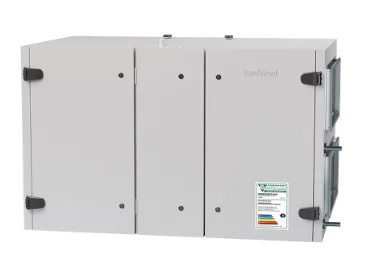 IdentifierAHU 1Connection StatusUnknownGet Started GuideDevice ConfigurationIP Address (Optional)192.168.1.100Create Device
-
Enter the network configuration details. They are different for BACnet IP, Modbus TCP and Modbus RTU. Enter them and click Configure.
Komfovent VersoIdentifierAHU 1Connection StatusUnknownGet Started GuideModbus TCP ConfigurationSlave ID1IP Address192.168.1.100Port Number502Configure Modbus TCPNetwork information of the device
Komfovent VersoIdentifierAHU 1Connection StatusPinging…Get Started GuideacceptedBack to the roomsScan another deviceDevice is accepted.Modbus TCP configuration completed successfullyThe Link communicates with the device
If communication is established, you get a green tick next to Pinging. If the Link can't communicate with the device, the status stays Unknown.